
Convert WebP to JPG Online
Turn WebP images into JPG files that older apps, upload forms and print services accept. Conversion runs in your browser.
Drop your image here
or
Supported: WebP
Maximum file size: 20 MB
You can also paste an image from your clipboard.
- File name
- Dimensions
- File size
- Format
Before and after
Drag the slider, or use the arrow keys, to compare. Zoom in on your device to check fine detail.
Original
- Size
- Dimensions
- Format
Compressed
- Size
- Dimensions
- Format
Your image is processed for compression and is not permanently stored. In modern browsers, compression runs on your device, so the image is not uploaded. Older browsers that cannot encode WebP or PNG fall back to our server, where the image is processed in memory and discarded as soon as the result is returned. Privacy policy
Simple, free and private
-
Free to use
Compress and convert as many images as you like, with no fees or watermarks.
-
No registration
No account or email needed. Open the page and start right away.
-
JPG, PNG and WebP
Works with the most common image formats and converts between them.
-
Up to 20 MB
Upload large photos straight from your phone or camera.
When you need a JPG instead of WebP
Many websites now serve images as WebP. When you save one of those images, you end up with a .webp file that works fine in a browser but can cause trouble elsewhere. Some older photo viewers and editors cannot open it, some upload forms reject it, and some print services only accept JPG or PNG.
JPG is the most widely accepted photo format, so converting to JPG is usually the simplest fix. This page is set up to output JPG: upload a WebP, choose a quality, and download a .jpg file.
Only convert images you have the right to use. Saving an image from a website does not give you permission to reuse, print or publish it, so check the licence or ask the owner first.
How to convert WebP to JPG
-
Add your WebP
Drag and drop, choose a file or paste an image. JPG output is already selected.
-
Use a high quality
Around 85–92% protects detail, because this is a second lossy encode.
-
Download the JPG
Check the result in the comparison slider, then download your .jpg file.
What changes when WebP becomes JPG
A second lossy encode
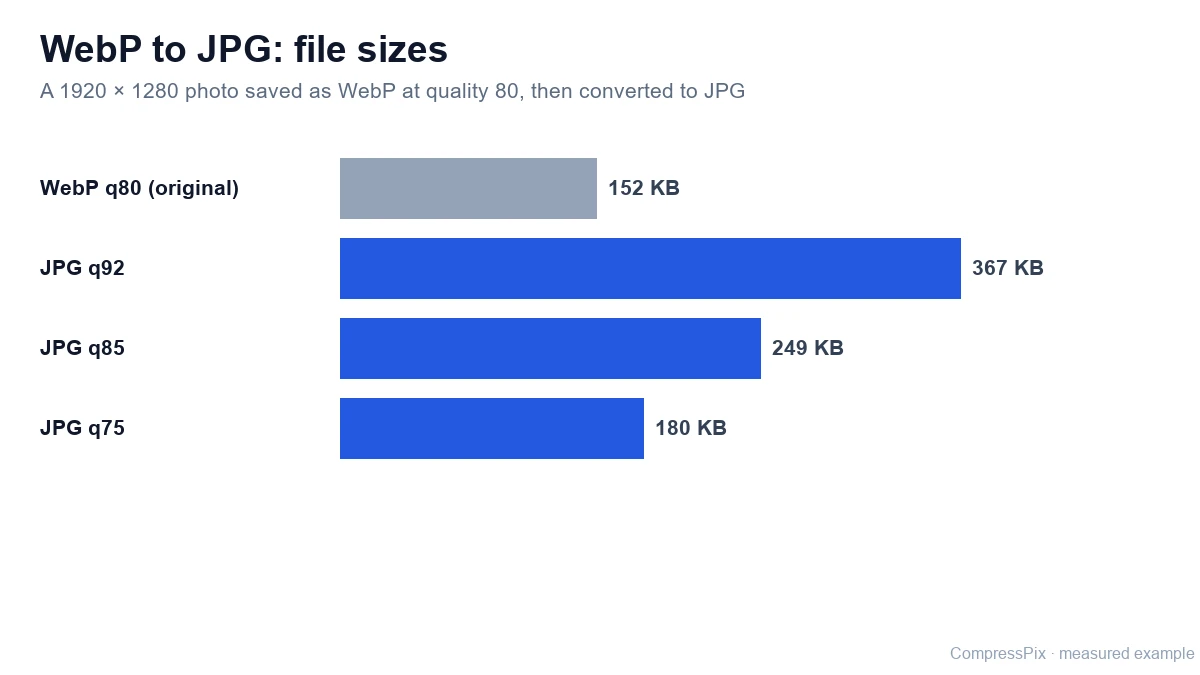
Most WebP images on the web are lossy: detail was already discarded when they were created. Saving as JPG compresses the image again with a different method, and the two sets of artefacts add up. Converting cannot restore anything the WebP lost, so the best you can do is avoid losing more.
That is why a high quality setting, around 85–92%, is a good choice here. The JPG may well be larger than the WebP it came from, which is normal: JPG and WebP quality numbers are not directly comparable, and JPG often needs more bytes for similar visual quality.
Staying under an upload limit
If a form only accepts JPG files under a certain size, set a target size instead of a quality. The tool lowers the quality first and reduces the dimensions only if needed to get close to the target. Results are approximate, so check the final size before uploading. You can also shrink an existing JPG further with the JPG compressor.
Transparency becomes white
WebP can contain transparency, but JPG cannot. Transparent areas are filled with white, and soft or semi-transparent edges are blended onto white. If the image is a logo or cut-out that must stay transparent, keep the WebP, or reduce its size with the WebP compressor.
Animated WebP files
WebP can also hold animation, while JPG is always a still image. If you upload an animated WebP, only the first frame is kept in the JPG.
Privacy and file details
JPG output is always encoded in your browser, so your WebP is not uploaded. Re-encoding removes embedded metadata, and the download keeps the original name with -compressed.jpg added. Working with PNG files instead? The PNG to JPG converter works the same way.
Going the other way
If you publish images on a website, WebP is often the lighter format, and the JPG to WebP converter creates WebP files from your JPGs.
Why convert WebP to JPG?
-
Opens almost anywhere
JPG works with older apps, upload forms and print services that reject WebP.
-
Control the quality
Pick a high setting to limit extra loss from the second encode.
-
Stays on your device
JPG conversion runs in your browser, so the image is not uploaded.
-
No account
Convert one image at a time, up to 20 MB, without signing up.
Frequently asked questions
Why won't my WebP image open or upload?
WebP is displayed by all current major browsers, but some older software, upload forms and print services only accept JPG or PNG. Converting the image to JPG usually solves this, because JPG is the most widely accepted photo format.
What quality should I use for WebP to JPG?
Use a high quality, around 85–92%, if detail matters. A lossy WebP has already discarded some detail, and saving it as JPG is a second lossy encode. A low setting would add visible artefacts on top of the original compression.
What happens to transparent WebP images?
JPG has no transparency, so transparent areas are filled with white and semi-transparent edges are blended onto white. If you need a transparent file, keep the WebP.
Can I convert an animated WebP to JPG?
JPG cannot store animation. If you upload an animated WebP, only the first frame is kept and saved as a still JPG.
Is my WebP uploaded to a server?
No. JPG output is always encoded in your browser, so the image stays on your device during WebP to JPG conversion.
Can I convert WebP to PNG instead?
No. This tool outputs JPG or WebP, and only keeps PNG when the uploaded file is already a PNG. For transparent images, keeping the WebP is the way to preserve transparency here.
More answers in our image compression FAQ.